JetBackup 5 Restore Tests: How to Know Your Backups Can Save You
 PlaneHost team
4 min read
Backup software can show a job as scheduled and the service as running while nothing useful is being saved. For anyone responsible for websites, the real question is not "did the backup run?" but "can we restore the right site and database to a known point in time — and how long will it take?"
A real example: the service was up, the backups were not
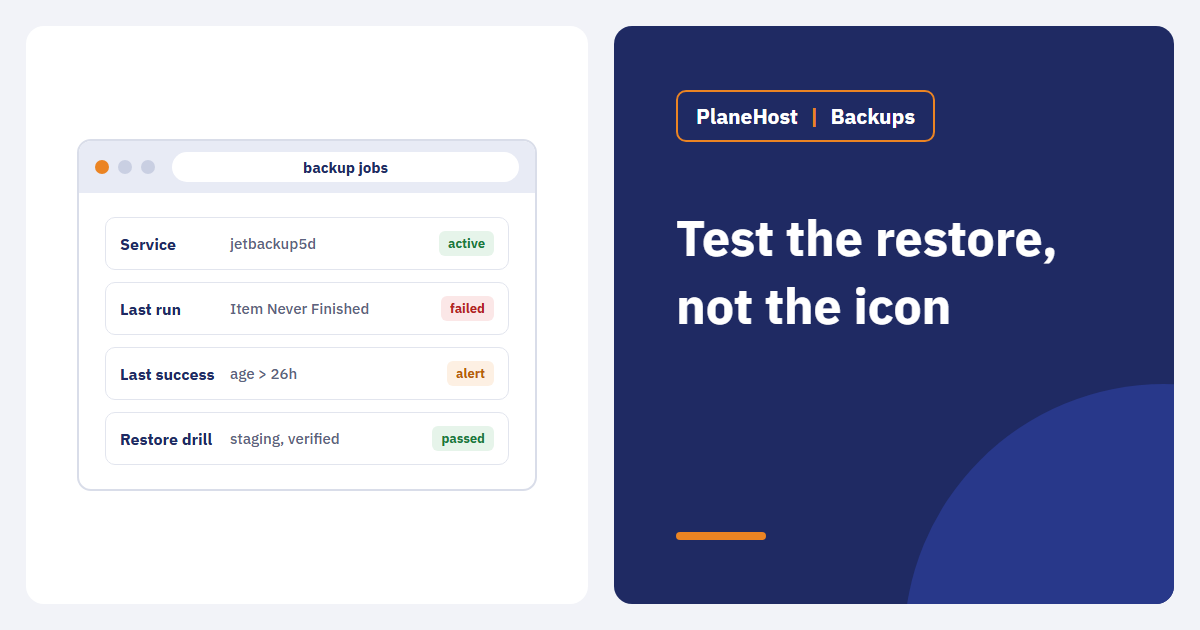
In November 2026, after an automatic cPanel update on one of our servers, every JetBackup 5 job started on schedule and then failed within a second for each account. The log showed only Item Never Finished, with no other error. The daemon itself reported as active the whole time.
What caught it was not the service status but a daily check on the timestamp of the last successful run. The fix was a full restart of the JetBackup daemon, which had been running since before the update; a manual job then completed for every account the same morning. Older recovery points on our off-site storage were intact throughout. The lesson: monitor success, not liveness.
Define what "recoverable" means first
Decide how much recent data you can afford to lose (the recovery point objective, RPO) and how long a site may be down (recovery time objective, RTO). Those two numbers drive backup frequency, retention, destination design and which accounts deserve the most frequent drills.
Inspect the full job record
- In Backup Jobs, confirm each job is enabled, its next run time, and which accounts and filters it includes. An exclude filter can silently drop an important account.
- In Logs, find the latest successful scheduled run and look for partial failures, not just failed jobs.
- Confirm the destination is reachable and has space. Off-site storage over SFTP may report free space incorrectly; check it from the storage side too.
- Detailed logs normally live under
/usr/local/jetapps/var/log/jetbackup5/, including per-queue item logs. Strip tokens, passwords and customer data before sharing excerpts.
Restore into an isolated environment
- Pick a representative account with a database-backed site. Never restore over a live customer account for a routine test.
- Use a restricted staging location: no indexing, payments disabled, outgoing customer email disabled.
- Restore a specific snapshot and check content, media, logins, database records and the site's core function — not just the homepage.
- If backups are encrypted, confirm the recovery team can actually access the keys.
- Record the snapshot date, destination, operator, total restore time and every manual step you had to improvise.
Make it repeatable
- Repeat drills on a schedule that matches the risk, and after major infrastructure changes — panel updates included.
- Keep at least one copy on storage independent of the production server.
- Alert on a missed successful scheduled job and on account-level errors, not only on the daemon being down.
- Before changing production in response to an alert, compare it with the actual logs; monitors can be wrong too.
How backups work on our hosting
Every PlaneHost hosting account is backed up daily to off-site storage separate from the server, with 7 daily, 4 weekly and 2 monthly recovery points. Customers can restore a file, a database or the whole account themselves from cPanel through JetBackup, and we check the last successful backup for every account each day.
Takeaway: a recovery plan is credible only once it has been tested. Restore drills turn backup claims into evidence — before an emergency does it for you.
References: JetBackup 5 — Logs, JetBackup 5 — Backup Jobs.