Website Emails Not Arriving? Troubleshoot Beyond the Contact Form
 PlaneHost team
3 min read
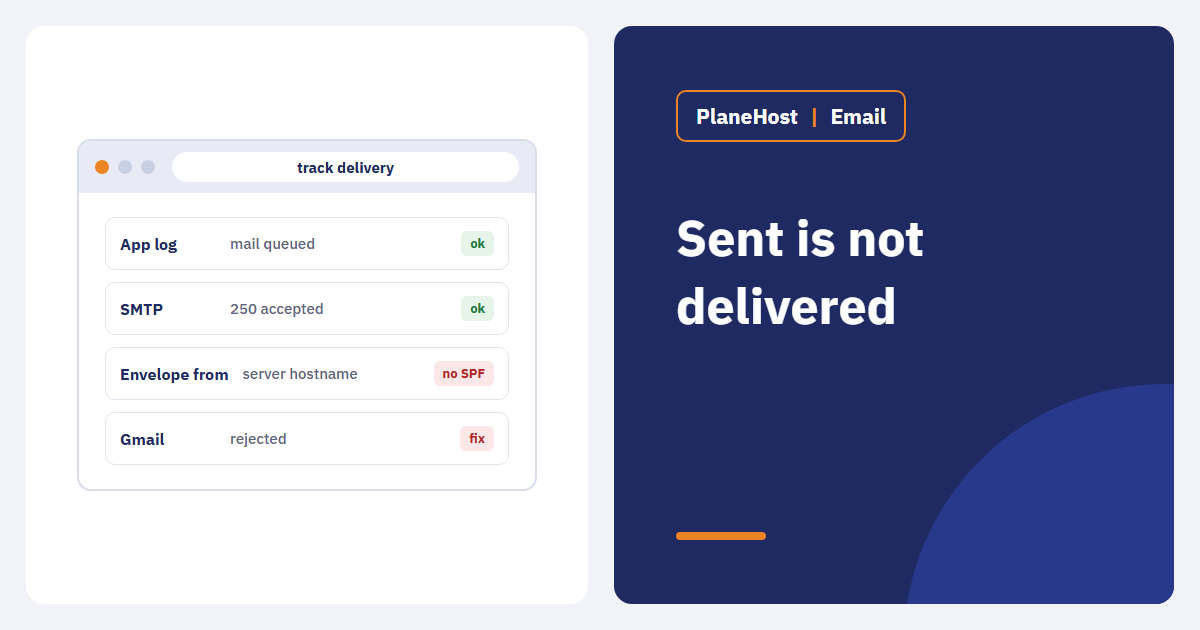
A website can show "Your message has been sent" while nobody ever receives it. The same silent failure hits password resets, booking confirmations, invoices and order updates — and each has a real business cost. Fixing it is much easier once you can see every stage the message passes through.
1. Identify which messages fail
If only contact-form emails go missing, suspect the form plugin or its settings. If every email stopped after a hosting move, look at SMTP credentials, DNS, mail routing and the sender address. If only Gmail or only Outlook recipients complain, it is usually authentication or reputation.
2. Follow the message from the application
- Reproduce with a test account you control.
- Check the CMS or application log for errors when the email is generated.
- If emails are queued, make sure the queue worker or cron job is actually running.
- If the site uses SMTP, verify host, port, encryption, authentication and the allowed sending address. Never paste credentials into tickets or screenshots.
3. Read the delivery status, not just the inbox
Accepted, deferred, bounced, rejected and delivered are different things. Even "delivered" only means the receiving server accepted the message, not that it reached the inbox. On cPanel hosting, Track Delivery shows what happened to each message the server sent, including the remote server's reply. Check spam folders only after you know the upstream status.
4. Check the sender identity — a mistake we made too
When we set up automated alert emails on one of our own servers, Gmail silently rejected them. The messages were going out with the server's own hostname as the envelope sender, which had no SPF or DKIM alignment with the domain in the "From" line. Setting the envelope sender to an address on the authenticated domain fixed it immediately.
Many website scripts make the same mistake: the visible "From" says [email protected], but the technical sender is something else. Make sure both use a domain you have authenticated.
5. SPF, DKIM and DMARC
- List every service that sends as your domain: mailboxes, the website, the store, invoicing, marketing tools.
- Keep one SPF record that includes all of them — two SPF records break each other.
- Enable DKIM for every service that supports it.
- Start DMARC at
p=none, read the reports, then tighten.
In cPanel, Email Deliverability checks SPF and DKIM for each domain and can repair them when your DNS is hosted with us. You can also check any domain with our free DNS lookup tool.
6. Protect your reputation
A new domain that suddenly sends thousands of messages looks like spam. Keep transactional email (receipts, resets) separate from marketing, handle bounces, and never send bulk mail to lists that did not opt in.
7. Monitor what matters
Pick four representative messages — signup confirmation, order receipt, password reset, form notification — and test them after every update or migration. Alert when a queue stalls or failures spike.
Takeaway: a site is not fully migrated until its transactional email is tested end to end. If you are moving hosts, our free migration includes moving mailboxes and checking that mail still flows.