How to Read Web Hosting Resource Limits Before You Buy
 PlaneHost team
4 min read
When people compare hosting plans, they usually look at two numbers: disk space and the number of websites. Those matter, but they say almost nothing about how many visitors your site can serve at the same moment. Two plans with identical NVMe storage can behave very differently once traffic arrives, because the real constraints are CPU, memory, concurrent processes and disk I/O.
What each limit means
- CPU (cores or "speed") — how much processing time your account can use. Every uncached PHP request, every database query and every image resize consumes it.
- Physical memory (RAM) — the memory your PHP processes and scripts can hold at once. Hitting it causes failed requests even when the disk is nearly empty.
- Entry processes (EP) — how many dynamic requests can be entering your account at the same time. This is not the number of visitors; a cached page served by the web server does not count, and most requests finish in a fraction of a second.
- Processes (NPROC) — the total number of processes your account may run, including cron jobs, email scripts and background tasks.
- I/O and IOPS — how fast your account can read and write data, and how many read/write operations per second. These matter for backups, imports, large uploads and some database work.
- Bandwidth — data transferred. "Unmetered" bandwidth is not unlimited computing power.
An example: our own published limits
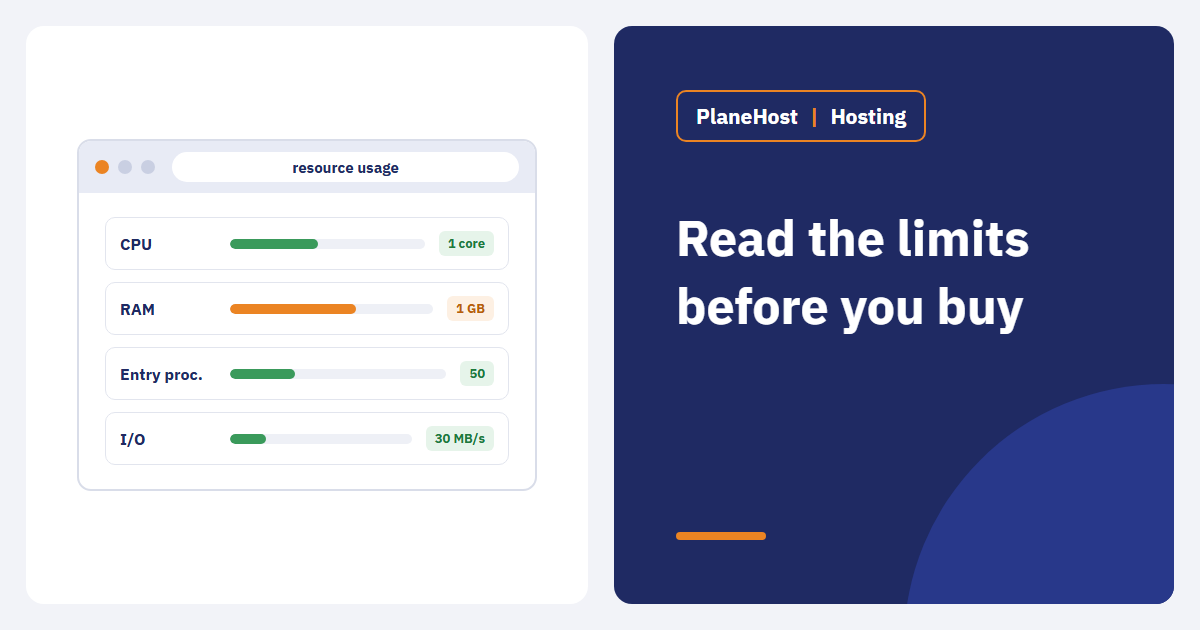
We isolate every shared hosting account with CloudLinux, so each plan has fixed, visible limits. These are the actual values on our servers today:
| Plan | CPU | RAM | Entry processes | Processes | I/O | IOPS |
|---|---|---|---|---|---|---|
| Starter | 1 core | 1 GB | 50 | 150 | 30 MB/s | 2,048 |
| Growth | 1.5 cores | 1.5 GB | 60 | 150 | 35 MB/s | 3,072 |
| Business | 2 cores | 2 GB | 70 | 200 | 40 MB/s | 4,096 |
| Pro | 3 cores | 3 GB | 80 | 250 | 45 MB/s | 5,120 |
If a host will not tell you these numbers, ask. "Blazing fast" is not a specification.
Translate limits into your workload
A company brochure site with mostly cached pages barely touches CPU. A membership portal checks a session on every request. A WooCommerce store needs extra headroom for cart, checkout, stock updates and payment callbacks — pages that cannot be cached. Before buying, list your busiest dynamic functions: product filters, booking availability, dashboards, imports, scheduled tasks.
Then ask the host three questions:
- What happens when a limit is reached — slowdown, error, or temporary throttling?
- Can I see my own resource graphs?
- Can I upgrade without migrating the site?
On our servers the answers are: requests above the limit are slowed or briefly rejected rather than affecting other customers; you see your usage in cPanel under Resource Usage, including the moments you hit a limit; and upgrades happen on the same server with no migration.
A practical evaluation method
- Use a staging copy of your real site, not an empty install.
- Measure a cached public page and one dynamic action (search, add to cart, login).
- Run a modest, coordinated load test — never a flood on shared hosting; it affects other customers and usually breaks the terms of service.
- Note which resource hits its ceiling first. That is the number to compare between plans.
- Compare upgrade and renewal prices, not just the introductory monthly figure.
Adequate today, undersized tomorrow
The goal is not to buy the biggest plan. It is to pick one that handles expected peaks with reasonable headroom, then watch how the site evolves: new plugins, reports, storefronts and seasonal campaigns all change the load. If you hit limits regularly after optimising, that is the signal to move up a plan — or to a VPS when shared hosting is no longer the right fit.
See the full comparison on our web hosting plans page; renewal prices are shown before checkout.